
Introduction
Seeing a circle on your iPad screen can be puzzling and disrupt your tasks. This guide provides insights into what causes this circle and offers practical solutions to fix and prevent this issue. You’ll also discover tips to keep your iPad display optimized, enhancing both performance and user experience.
What is the ‘Circle on iPad Screen’?
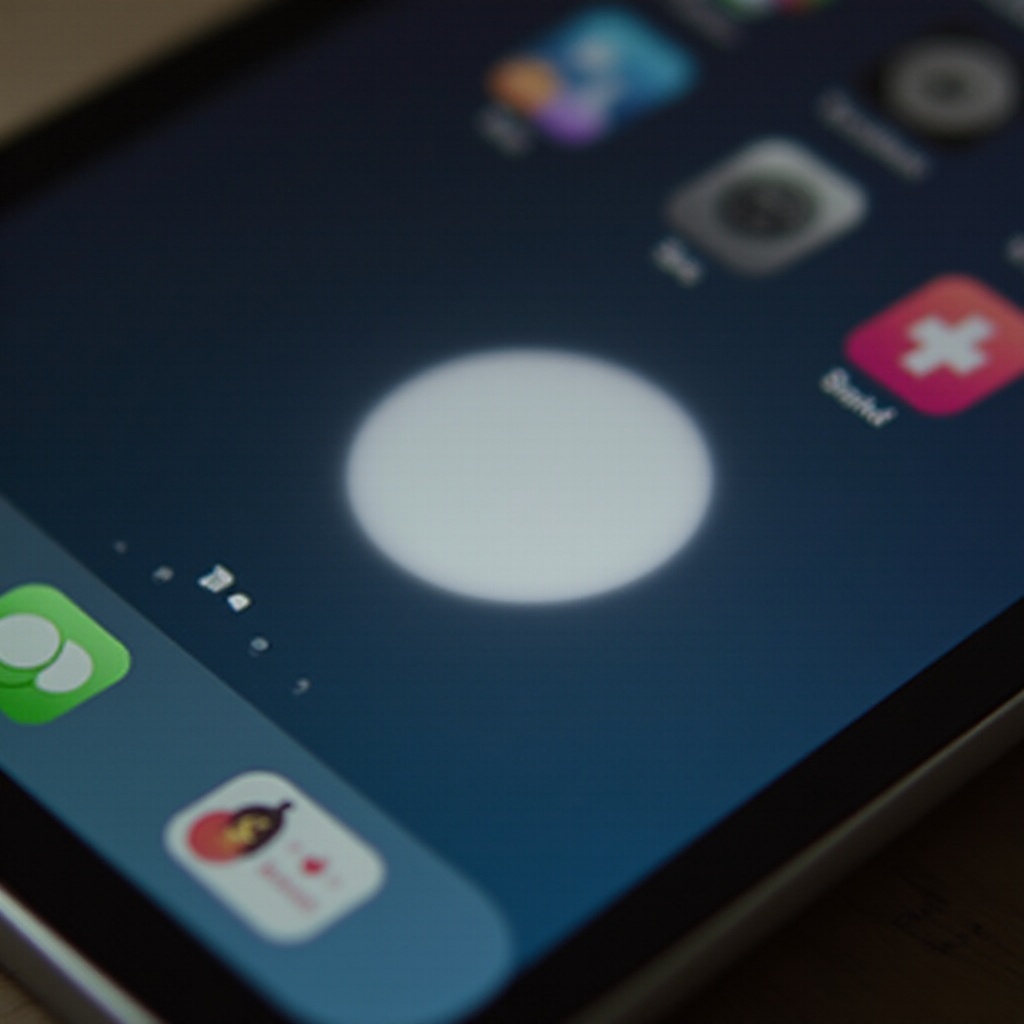
When a circle appears on your iPad screen, it often confuses users. It’s typically a translucent or opaque circle that disrupts touch functions. Generally, it’s linked with software issues, although sometimes hardware may play a role. Understanding these causes will help you tackle the problem head-on and get back to smooth operating.
Definition and User Reports
Many users describe the circle as interfering with normal touch commands. Some experience it after specific software updates or when using certain apps, suggesting a potential glitch or misconfiguration.
Common Causes of the Circle
- Software Glitches: Temporary issues that arise with new updates.
- Accessibility Settings: Features like AssistiveTouch that may be accidentally activated.
- Touchscreen Calibration: Errors in touch response alignment can cause recurring circles.
With these causes outlined, let’s move on to some troubleshooting strategies to help you clear up the issue effectively.
Troubleshooting the iPad Circle on Screen
Addressing the circle issue often requires systematic troubleshooting. In this section, we will discuss simple and advanced solutions.
Basic Fixes: Restart and Reset
- Restart your iPad to clear any temporary glitches.
- Perform a soft reset by holding the power and home buttons until you see the Apple logo.
- Conduct a force restart by pressing and releasing the volume up button, then the volume down button, followed by holding the power button until the iPad restarts.
Advanced Solutions: Software Updates and Diagnostics
- Ensure your iPad has the latest iOS version by checking for updates.
- Use the built-in diagnostics or schedule an appointment at the nearest Apple Genius Bar.
- Reset all settings by going to Settings > General > Reset > Reset All Settings. This will not delete your data but will restore system configurations.
When to Seek Professional Repair
If the circle persists after trying both basic and advanced methods, reach out to Apple Support. Persistent issues may indicate deeper hardware problems that need expert attention.
It’s also crucial to prevent these issues from occurring again. The next section will introduce preventive measures to keep your iPad running smoothly.

Preventive Measures for iPad Screen Issues
Taking a proactive approach can help you avoid ongoing screen issues like the circle phenomenon. The following strategies will help you maintain your iPad’s screen health effectively.
Regular Maintenance Tips
- Keep your screen clean with a soft microfiber cloth to prevent grime buildup.
- Routinely check for and apply software updates to address potential bugs.
Protecting Your Screen
- Invest in a high-quality screen protector to guard against scratches and impacts.
- Use an impact-resistant case to protect against drops.
Keeping Software Up-to-Date
- Enable automatic updates to ensure your system is up-to-date.
- Monitor how apps behave after an update to identify and address performance issues promptly.
Maintaining your iPad also involves optimizing its performance, ensuring your user experience remains seamless.
Enhancing iPad Screen Performance
Optimizing your iPad’s display settings can significantly improve your user experience. Implement these strategies for a more intuitive and efficient interaction.
Optimal Display Settings
- Calibrate your screen brightness to match your environment, reducing eye strain.
- Activate the True Tone feature to automatically adjust the screen’s white balance based on ambient lighting conditions.
Utilizing Accessibility Features
- Customize AssistiveTouch for easier navigation.
- Use Display Zoom to enhance the visibility of on-screen elements.
- Enable VoiceOver for auditory feedback that complements visual cues.
These enhancements will help ensure your device functions at its best, offering both ease of use and longevity.
Conclusion
By understanding and addressing the iPad circle issue, you can significantly enhance your device’s reliability. Regular maintenance, coupled with troubleshooting tips, will ensure your iPad screen performs optimally. Stay updated, monitor app behaviors, and make use of advanced settings to prevent any future screen anomalies.
Frequently Asked Questions
What causes the circle on my iPad screen?
The circle is often caused by software glitches, accessibility settings, or touchscreen calibration errors.
Can a software update fix the circle issue?
Yes, updates may resolve many glitches, including the circle issue. Keeping your software current is essential.
How can I prevent screen issues on my iPad?
Prevent issues by regularly cleaning your screen, using protective gear, keeping software updated, and optimizing your settings.