
Introduction
Successfully connecting your Sony XM4 headphones to your iPhone can elevate your audio experience. Renowned for high-quality sound and advanced noise cancellation, the Sony XM4s offer users a top-tier listening journey. This guide sets the stage for connecting your devices, covering setup, troubleshooting, and optimization.
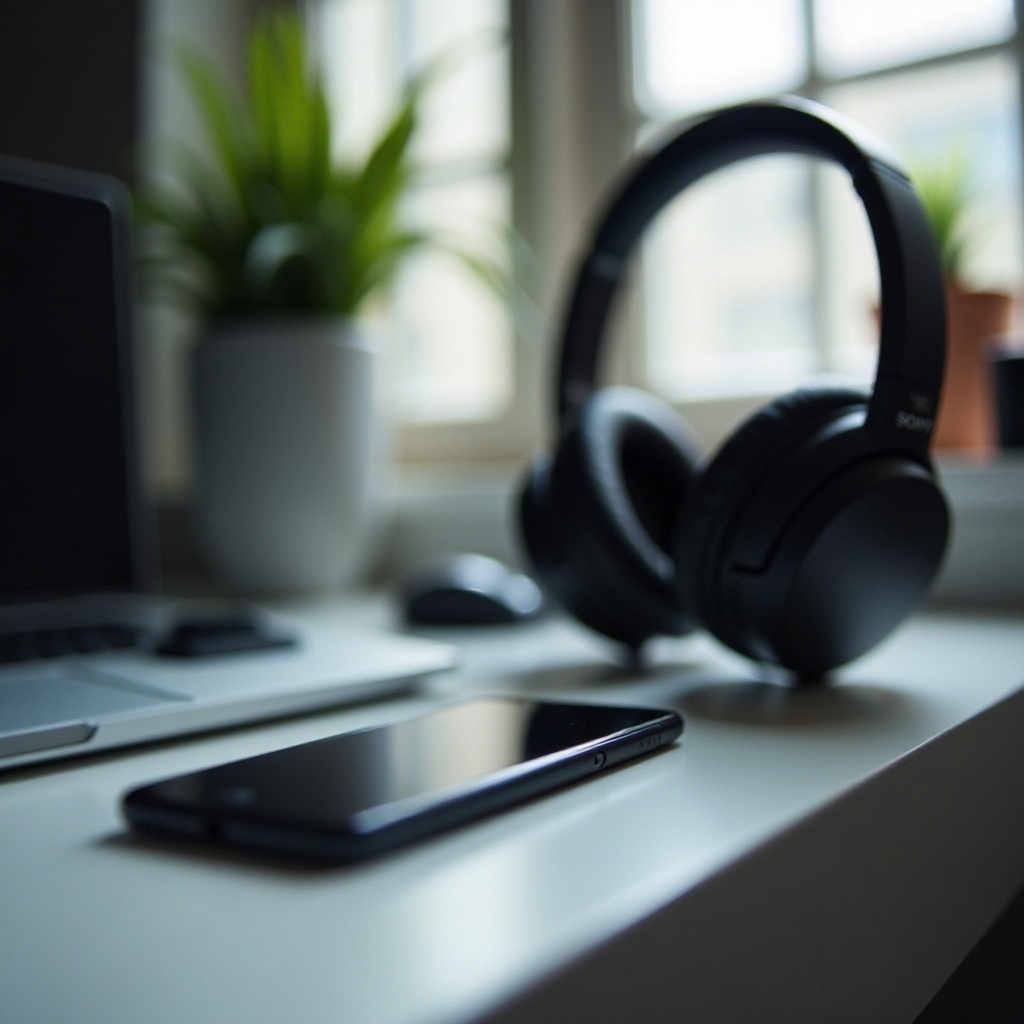
Preparing Your Devices
Preparation is key when linking your XM4s with your iPhone. Follow these steps to ensure your devices are ready:
- Ensure Proper Charging: Verify that your headphones and iPhone have sufficient charge to avoid interruptions.
- Check for Updates: Update your iPhone’s iOS and check for firmware updates for your XM4 headphones.
- Enable Bluetooth: On your iPhone, navigate to Bluetooth settings and ensure it’s activated.
Once prepared, proceed to pair your devices. Preparation simplifies the connection, ensuring a smooth experience.
Step-by-Step Pairing Process
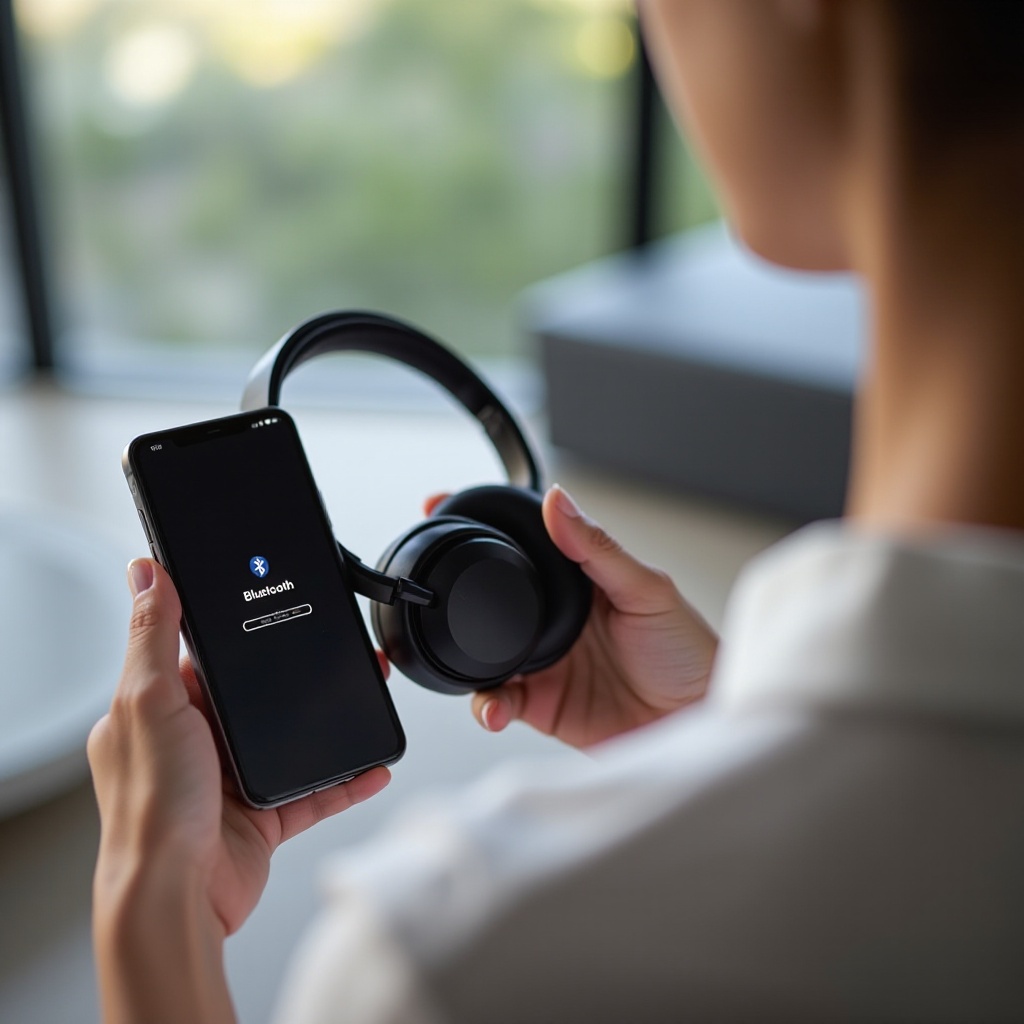
Now that your devices are ready, let’s connect your Sony XM4s to the iPhone. Follow this guide for pairing:
- Activate Bluetooth: Go to your iPhone’s ‘Settings’ and enable Bluetooth.
- Initiate XM4 Pairing Mode: Hold the power button on your headphones until they enter pairing mode.
- Connect: Locate your headphones in the Bluetooth list on your iPhone and connect.
- Try NFC: If available, use NFC to tap your iPhone to the headphones for quick pairing.
These steps ensure your XM4s are connected. Next, address any potential connectivity issues.
Troubleshooting Common Connection Issues
Even with the proper steps, connection issues may arise. Here are solutions to common problems:
- XM4 Not in Bluetooth List: Make sure the headphones are in pairing mode and reboot both devices to try again.
- Frequent Connection Drops: Position your phones near the XM4s and reduce interference from other devices.
- Interference Solutions: Minimize Bluetooth interference by turning off unused devices nearby.
By solving these issues, maintain a reliable connection for uninterrupted listening. With a secure connection, let’s enhance audio settings.
Optimizing Audio and Device Settings
With your XM4s connected to your iPhone, maximize your audio experience through these adjustments:
- Customize Sound Profiles: Use the iPhone’s equalizer to adjust sound settings, maximizing bass and treble.
- Sony Headphones Connect App: Download the app to access advanced settings for tailored audio experiences.
These optimizations fine-tune sound quality, allowing for an unmatched listening journey. To conclude, let’s summarize.
Conclusion
The seamless pairing of Sony XM4 headphones with an iPhone offers exceptional sound quality and convenience. Following this guide, you ensure a reliable setup and unlock premium audio features. Dive deeper into customization options with the Sony app to enrich every listening session.
Your XM4s, equipped with top-notch tech, now provide unparalleled sound satisfaction.
Frequently Asked Questions
How can I check if my iPhone is compatible with Sony XM4s?
Ensure your iPhone has Bluetooth capability and runs the latest iOS version to connect efficiently.
What should I do if the connection fails repeatedly?
Update both devices, ensure proximity during pairing, and reset Bluetooth settings before reattempting.
Can I connect my Sony XM4s to multiple devices simultaneously?
Yes, XM4 supports multipoint connectivity, allowing you to switch between two devices like an iPhone and a computer.