
Introduction
The Nintendo Switch offers a unique gaming experience with its hybrid design, allowing players to enjoy games on the go or at home. However, managing the console’s storage becomes crucial as your game library grows. Archiving games is an effective method to keep your storage organized while preserving your gameplay data. This guide will walk you through the process of archiving games, so your favorite titles remain accessible whenever you need them.
Understanding Game Archiving on Nintendo Switch
Efficiently managing your Nintendo Switch storage involves understanding what game archiving is and its benefits. Archiving allows you to remove a game’s software from your console but keep its icon and save data, freeing up space without deleting your gaming progress.
-
What Is Archiving and Why Do It?
Archiving is particularly useful for gamers who frequently download new titles but want to ensure their favorite games are just a download away. It helps manage the limited storage available by offloading games you are not currently playing. -
Archiving vs. Deleting: Key Differences
While archiving removes only the game data, deleting removes both the game and its save data from your console. Archiving is reversible; you can re-download the game, retaining your progress and settings. Deleting means the game and its saved data are erased, requiring a full reinstall if you decide to play it again.
Understanding these differences helps you maintain an optimal balance between storage space and ready access to your games.
Step-by-Step Guide to Archiving Games
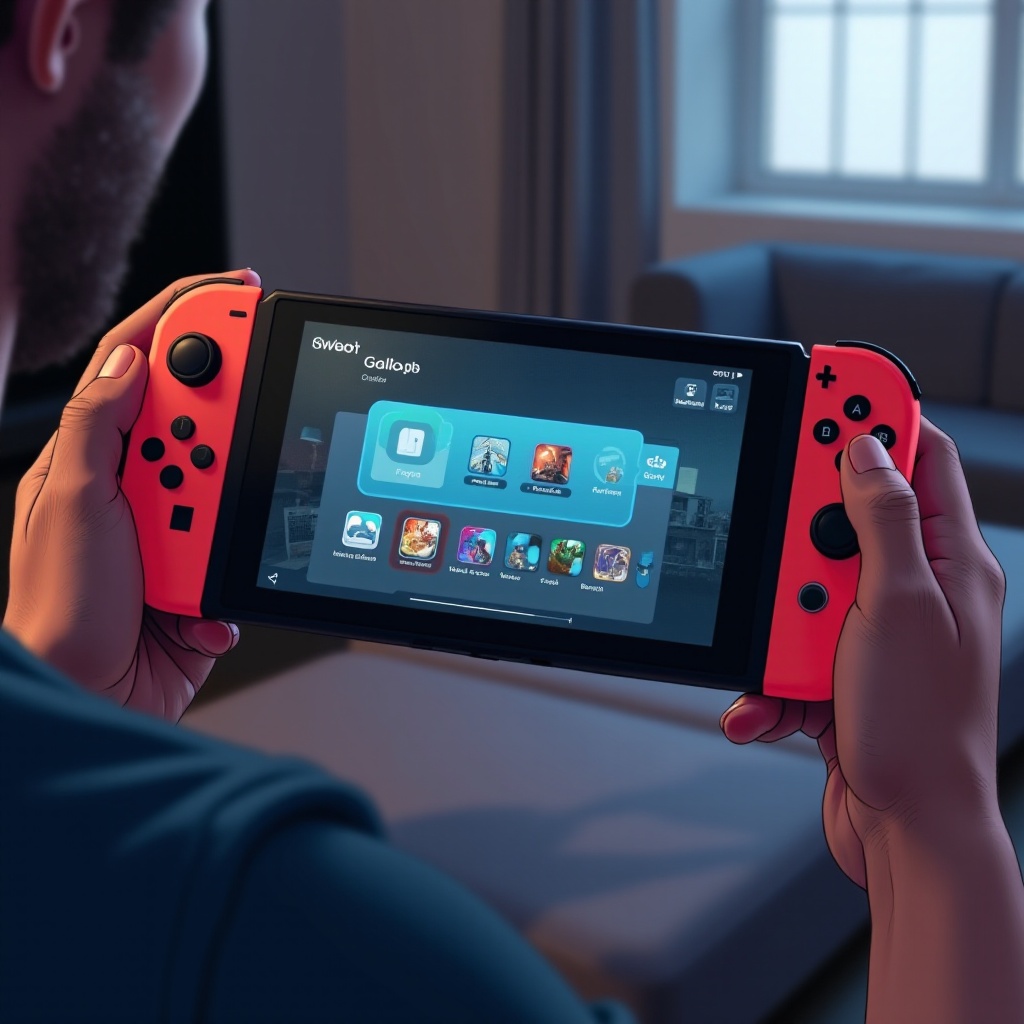
Here are the steps to effectively archive games on your Nintendo Switch. Follow them to keep your gaming library neat and storage space maximized.
- Accessing the Archive Function
- Switch on your console and go to the Home Menu.
-
Select the ‘System Settings’ icon from the lower row of icons.
-
Archiving a Single Game Step-by-Step
- Navigate to ‘Data Management’ within System Settings.
- Select ‘Manage Software’ to display the list of installed games.
-
Choose the game you wish to archive and select ‘Archive Software.’ Confirm your action when prompted.
-
Archiving Multiple Games Efficiently
- In the ‘Manage Software’ menu, sort your games by space usage.
- Highlight each game you wish to archive by pressing ‘A,’ then select ‘Archive Software’ for all chosen games.
These steps make it easy to manage your Nintendo Switch’s storage and ensure you have enough space for future downloads.

Best Practices for Managing Your Game Library
In addition to archiving, implementing best practices will help you maintain a well-organized game library on your Switch.
-
Choosing Which Games to Archive
Archive games that you play infrequently to free up space while keeping the ones you play regularly installed. A strategic approach ensures that you enjoy seamless access to your most-played titles. -
Monitoring and Optimizing Storage Space
Regularly review your storage situation by returning to the ‘Data Management’ section. Here you can see the distribution of used and free space, which helps in planning your next steps. Consider using an SD card for expanded storage if you consistently hit storage limits.
By following these tips, your Nintendo Switch experience remains smooth, with the ability to quickly play your favorite games without lengthy downloads.
Troubleshooting Common Issues
Despite careful management, issues may arise when archiving or retrieving games. Here are some solutions to common problems.
-
Common Problems and Solutions
Sometimes, archived games might not download perfectly. Always ensure a stable internet connection when downloading to avoid interruptions or corruption. -
Ensuring Save Data Security
Protect your progress by activating cloud backups through Nintendo Switch Online. This feature automatically stores your save data in the cloud, securing your game progress against any unexpected data loss.
Addressing these concerns means less time dealing with frustrations and more time enjoying your gaming adventures.
Conclusion
Archiving games on Nintendo Switch is an effective technique to manage storage without losing access to your gaming library. By understanding the process and applying best practices, you optimize storage capacity while maintaining quick access to games you love. With this guide, keeping your gaming experience efficient and enjoyable is easily achievable.
Frequently Asked Questions
Can Archived Games Be Played Without Re-downloading?
No, you must re-download archived games to play them. Archiving only removes software data but retains the icon and save data.
Does Archiving Affect Game Save Data?
No, archiving does not impact your save data. It allows you to retain your gaming progress and settings for later use.
How Do I Retrieve Archived Games?
Return to the archived game’s icon on the Home Menu and press ‘A’ to start re-downloading. Ensure a stable internet connection for a smooth process.