
Introduction
The iPad’s Control Center transforms how users interact with their devices by providing instant access to essential settings and features. Whether you aim to adjust screen brightness, manage music, or connect to Wi-Fi, this guide will help you navigate and maximize the Control Center functionality on your iPad, elevating your digital efficiency and user experience.
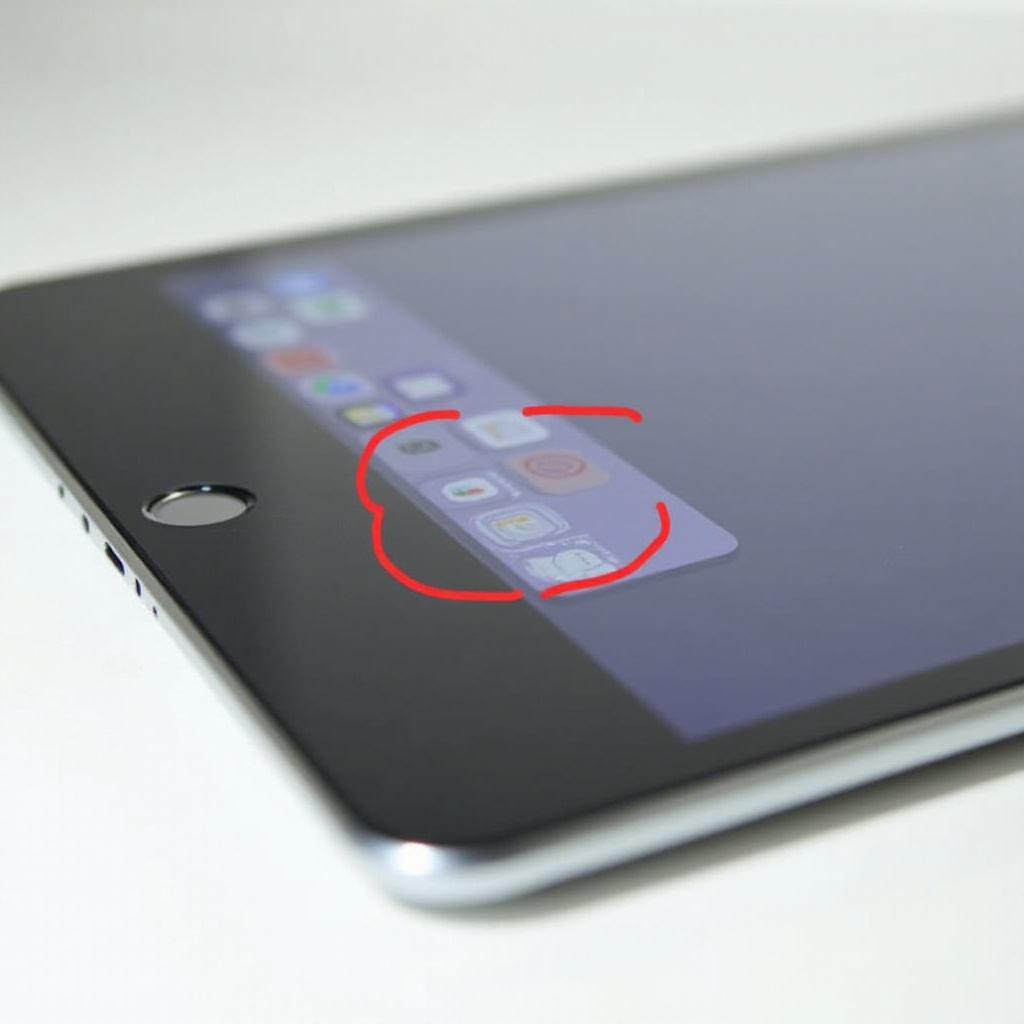
Understanding the iPad Control Center
The Control Center is a one-stop hub for quick adjustments and settings, streamlining the user experience by reducing the need to navigate through multiple apps. Its customizable nature enables users to tailor it according to personal preferences, making daily interactions with your iPad more efficient than ever. As the operating system evolves, so does the Control Center, incorporating new features and improving usability, thereby remaining a vital tool for every iPad user.

Accessing the Control Center on Different iPad Models
Navigating the Control Center differs slightly based on the iPad model and software version. Knowing these nuances ensures that you utilize this feature optimally and seamlessly.
Steps for iPad Pro, iPad Air, and Latest Models
- Locate the Top-Right Corner: Swipe downward from the top-right corner of the screen to reveal the Control Center.
- Interact with Controls: Once opened, explore the available controls to make quick setting adjustments.
Steps for Older iPad Models
- Find the Bottom Edge: Swipe upward from the bottom edge of the screen to access the Control Center.
- Adjust Settings Easily: Utilize the accessible icons to alter your settings efficiently.
Transitioning between models requires adapting to slight gesture changes, ensuring the Control Center remains an indispensable and easily accessible tool.
Customizing the Control Center for Enhanced User Experience
Customization is where the iPad Control Center truly shines, allowing users to optimize their experience by configuring the accessible controls to meet their daily needs.
Adding and Removing Controls
- Open Settings: Navigate to the ‘Settings’ app on your device.
- Select Control Center: Tap on ‘Control Center’ followed by ‘Customize Controls.
- Modify Controls: Use the green ‘+’ to add and the red ‘-‘ to remove existing options.
Rearranging Controls
- Drag and Drop: Move icons using the three-line symbol next to each control to reorder based on your preference.
With customization, frequent actions become a breeze, whether you’re bouncing from app to app or you simply wish to have your most-used settings front and center.
Troubleshooting Common Control Center Issues
As intuitive as the feature might be, users occasionally encounter issues with the Control Center. Fortunately, most have straightforward fixes.
Swipe Gesture Not Working
- Check the Swipe Area: Ensure you are swiping from the correct location correlating with your iPad model.
- Perform a System Update: Keep your software updated to avoid known glitches.
- Device Restart: Restarting your iPad can rectify many temporary software issues.
Missing Control Center Features
- Review Customization Settings: Verify your settings to ensure you have configured the features correctly.
- Reset Control Center: If necessary, go to ‘Settings,’ click ‘General,’ then ‘Reset,’ and finally, select ‘Reset All Settings.
Resolving these issues helps you maintain control over your device, ensuring that your experience is as streamlined and efficient as possible.

Advanced Tips for Optimizing Control Center Use
Maximize the utility of the Control Center with these advanced tips, turning your iPad into a more dynamic and responsive tool.
- Utilize Siri Shortcuts: Program Siri Shortcuts directly in the Control Center for rapid automation.
- Accessibility Options: Add shortcuts to accessibility features like Hearing Controls or Magnifier.
Mastering these advanced functions can exponentially boost your productivity, giving faster access to the tools you need most.
Conclusion
The Control Center on the iPad is an essential tool that simplifies device management and significantly enhances user convenience. By learning how to effectively access and customize it, you gain the flexibility to tailor your iPad experience to suit your personal needs. Follow this guide to ensure your interaction with the Control Center is both efficient and rewarding, optimizing the way you use your device every day.
Frequently Asked Questions
How do I reset the Control Center settings on my iPad?
To reset, go to ‘Settings’ > ‘General’ > ‘Reset’, and select ‘Reset All Settings.’ This will revert your settings, including the Control Center, back to default without affecting personal data.
Can I access the Control Center from the lock screen?
Yes, enable this feature by going to ‘Settings’, selecting ‘Face ID & Passcode’ or ‘Touch ID & Passcode,’ then scrolling to ‘Allow Access When Locked’ and toggling ‘Control Center’ on.
What are some lesser-known features of the Control Center?
Lesser-known features include screen recording, quick Apple TV controls access, and adding ‘Accessibility Shortcuts’ for features like VoiceOver or Magnifier.