
Introduction
Emojis have become a vibrant part of online interaction, empowering users to express emotions and thoughts visually. With their widespread use, integrating emojis into daily conversations is crucial to making your messages come alive. This guide walks you through simple and effective ways to enable and use emojis on your iPad, ensuring each message is enriched and engaging.

Preparing Your iPad for Emojis
Before diving into the world of emojis, prepare your iPad to ensure seamless functionality and access.
-
Check iOS Version Compatibility: Navigate to ‘Settings’, tap on ‘General’, and go to ‘About’ to verify your iOS version. Ensure it supports the latest emoji features for an optimal experience.
-
Update Your iPad: Head to ‘Settings’ > ‘General’ > ‘Software Update’ to install available updates. Keeping your device updated not only provides new features but also smooth emoji integration.
Once your iPad is up-to-date, you’re primed to activate a range of emojis and enjoy dynamic digital communication.
Activating the Emoji Keyboard on iPad
With your device ready, let’s enable the emoji keyboard, bringing expressive icons directly to your fingertips.
-
Navigate to Settings: Open ‘Settings’, move to ‘General’.
-
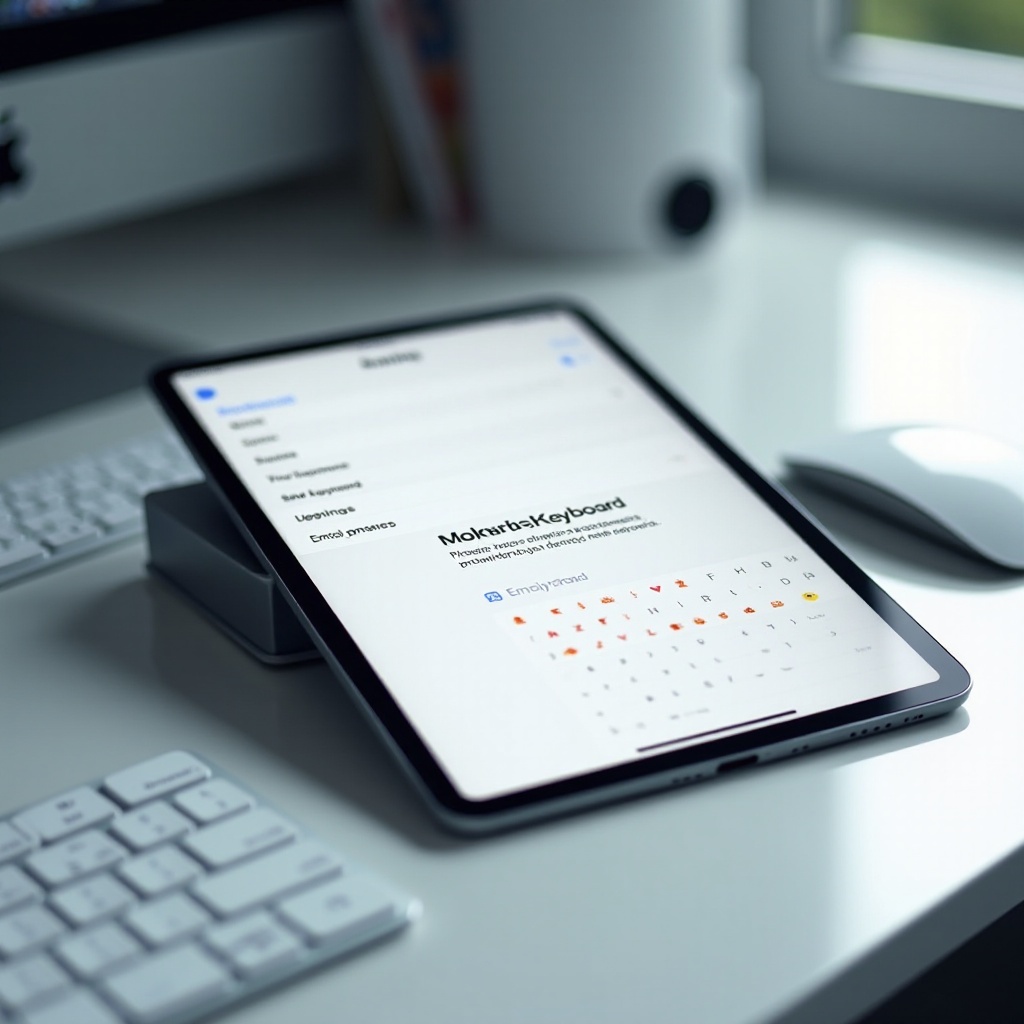
Add Keyboard: Select ‘Keyboard’, proceed with ‘Keyboards’, then tap ‘Add New Keyboard’.
-
Select Emoji Keyboard: Choose ‘Emoji’ from the list. Now your iPad is equipped with an emoji keyboard option ready for use.
With the emoji keyboard enabled, you can effortlessly access and utilize a broad spectrum of emojis while typing.
Utilizing Emojis Across Different Apps
Once your emoji keyboard is functional, explore its use across various applications for a full-fledged emoji experience.
-
Text Messages: Open the Messages app, compose a message, and tap the globe or smiley icon at the keyboard’s bottom to switch to emojis. Complement your text with lively expressions.
-
Emails and Social Media Apps: Activate emojis in email platforms and social media apps similarly. Adding emojis can enhance the visual appeal and emotional tone of your communications.
The seamless incorporation of emojis into multiple apps means you’re equipped to elevate standard interactions into something visually dynamic.
Customizing Your Emoji Experience
Beyond conventional use, emojis offer personalization and creativity, adding a unique touch to your iPad communications.
-
Create Personalized Emoji Collections: Discover sticker apps that allow customization of emojis or crafting of new ones aligned with your style.
-
Explore Emoji Stickers and Reactions: Utilize sticker packs and reactions available on messaging platforms like iMessage. Visit the app store to find emoji packs tailored to your preferences.
Customizing your emojis not only enriches communication but injects personality into your digital expressions.
Troubleshooting Common Emoji Access Issues
If you encounter hiccups with emoji settings, solutions are straightforward, ensuring continued enjoyment of this expressive tool.
-
Emoji Keyboard Not Displaying: Revisit ‘Settings’ > ‘General’ > ‘Keyboard’ to verify activation. Rebooting the device may resolve display issues.
-
Performance and Accessibility Problems: Confirm storage availability, as insufficient space might hinder keyboard performance. Clear app caches if necessary.
Addressing these issues quickly maintains your emoji interactions seamless, supporting rich exchanges.
Enhancing Your Emoji Usage with Tips and Tricks
Discover ways to optimize emoji use and uncover extra functionalities for smoother communication.
-
Discover Hidden Emoji Features: Regularly update applications to access the latest emoji variations and tools designed to enhance your palette.
-
Speed Tips for Quick Emoji Access: Rearrange your keyboard layout for prioritized emoji access and use predictive text for suggested emojis based on your input.
Implementing these techniques ensures that your emoji use is efficient, sharpening your digital interaction skills.
Conclusion
By following these straightforward steps, enabling and customizing emojis on your iPad becomes effortless. You’re now set to enrich your conversations, adding color and emotion at every interaction.
Frequently Asked Questions
Why can’t I find the emoji keyboard on my iPad?
Check ‘Settings’ to ensure the emoji keyboard is added. Try rebooting the device if the problem persists. Verify your iOS is up-to-date.
How can I make my emojis more personalized on the iPad?
Use sticker apps to create custom emojis. Download emoji packs from the app store for enhanced personalization and variety.
What can I do if emojis are not working correctly on my iPad?
Ensure the emoji keyboard is activated. Check storage capacity and clear app caches to boost performance and accessibility.