
Introduction
Bluetooth technology allows seamless wireless communication between your iPhone and various devices, from headphones to car systems. However, many users encounter frustrating issues when trying to establish these connections. Identifying and understanding these problems are the first steps toward achieving flawless connectivity.
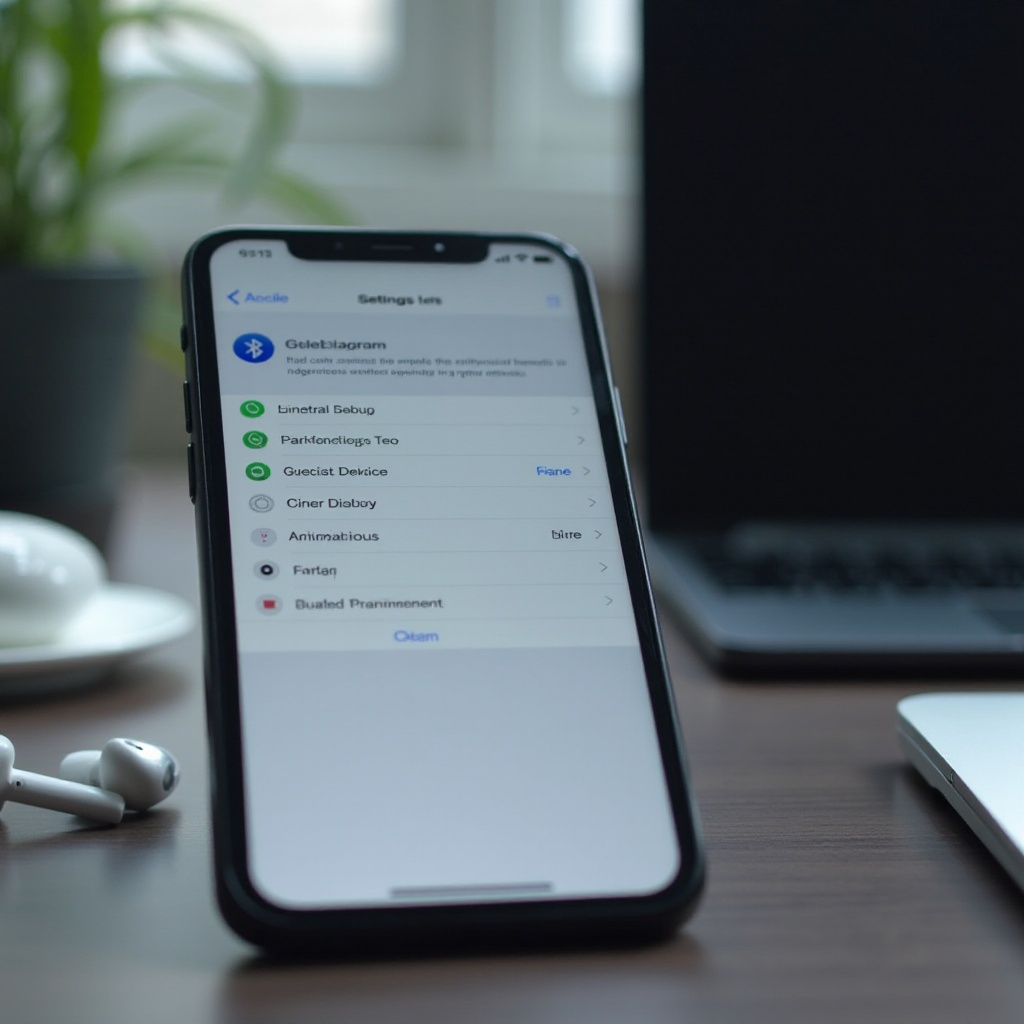
Understanding iPhone Bluetooth Technology
Your iPhone operates with advanced Bluetooth capabilities, relying on iOS architecture to manage wireless communication. Ensuring your device’s Bluetooth version is compatible with your other gadgets is crucial. Regular updates to your iPhone’s software ensure your device maintains optimal performance, reducing the chances of connectivity issues.
Compatibility issues can arise if the Bluetooth versions differ between devices. Knowing these details aids in troubleshooting future pairing problems, setting the stage for resolving common disruptions.
Common Reasons for Bluetooth Pairing Problems
Several factors lead to Bluetooth connectivity issues on iPhones. Software glitches are often identified after major iOS updates, leading to interruptions in Bluetooth functionality. Physical interference—such as obstacles between devices or competing wireless signals—can also impede communication.
Additionally, errors in user settings, like accidentally disabled Bluetooth features, can prevent successful pairing. Understanding these underlying causes will help you follow the troubleshooting steps provided.
Step-by-Step Troubleshooting Guide
To address Bluetooth pairing issues effectively, follow these troubleshooting steps:
-
Enable Bluetooth: Check if Bluetooth is activated on your iPhone. Swipe down on your home screen and tap the Bluetooth icon.
-
Update iOS and Firmware: Go to Settings, then General, and select Software Update to verify if you need updates. Updating both your device’s software and the Bluetooth accessory’s firmware can resolve compatibility problems.
-
Forget and Re-pair Devices: Open Settings, tap Bluetooth, and select ‘Forget This Device’ for the problematic accessory. Re-pairing can establish a fresh connection.
-
Restart Devices: Restart your iPhone and Bluetooth device. Sometimes, a simple reset can clear minor glitches.
-
Reset Network Settings: Navigate to Settings > General > Reset > Reset Network Settings. While this step requires reconfiguring Wi-Fi and Bluetooth settings, it often resolves deeper connectivity issues.
Following these steps can often solve basic Bluetooth pairing problems, leading to improved device interactions.

Advanced Fixes for Persistent Pairing Issues
For stubborn problems that persist beyond the basic fixes, consider these advanced options:
-
Identify Hardware Defects: Inspect both the iPhone and Bluetooth device for signs of physical damage.
-
Address Compatibility Problems: Double-check compatibility of Bluetooth versions between devices.
-
Utilize Apple Support: If issues persist, contact Apple Support for professional diagnostics.
Implementing these advanced techniques can lead users to successfully establish stable Bluetooth connections, enhancing their overall experience.
Best Practices for Optimal Bluetooth Connectivity
Maintaining strong Bluetooth connections goes beyond just fixing problems; it involves proactive management:
-
Regular updates to device software and accessory firmware ensure compatibility with evolving standards.
-
Assess device settings periodically to keep Bluetooth connections stable and reliable.
Following these best practices can safeguard against connectivity disruptions and enhance your Bluetooth performance.
Conclusion
Resolving Bluetooth pairing issues requires a comprehensive understanding of both the technical underpinnings and practical steps. By applying these solutions, users can ensure smooth interactions between their iPhones and Bluetooth devices, boosting usability and satisfaction.
Frequently Asked Questions
Why does my iPhone keep disconnecting from Bluetooth?
Frequent disconnections may occur due to signal interference, outdated software, or conflicting settings between your iPhone and the Bluetooth device.
Can resetting network settings affect my Bluetooth devices?
Yes, resetting network settings clears previous Bluetooth configurations, requiring re-pairing. However, it typically resolves connectivity issues by refreshing the device’s settings.
What should I do if my Bluetooth device isn’t recognized by my iPhone?
First, ensure compatibility between devices. Then, restart both devices, and check for software updates. Persistent issues might require specific troubleshooting depending on the device model.