
Introduction
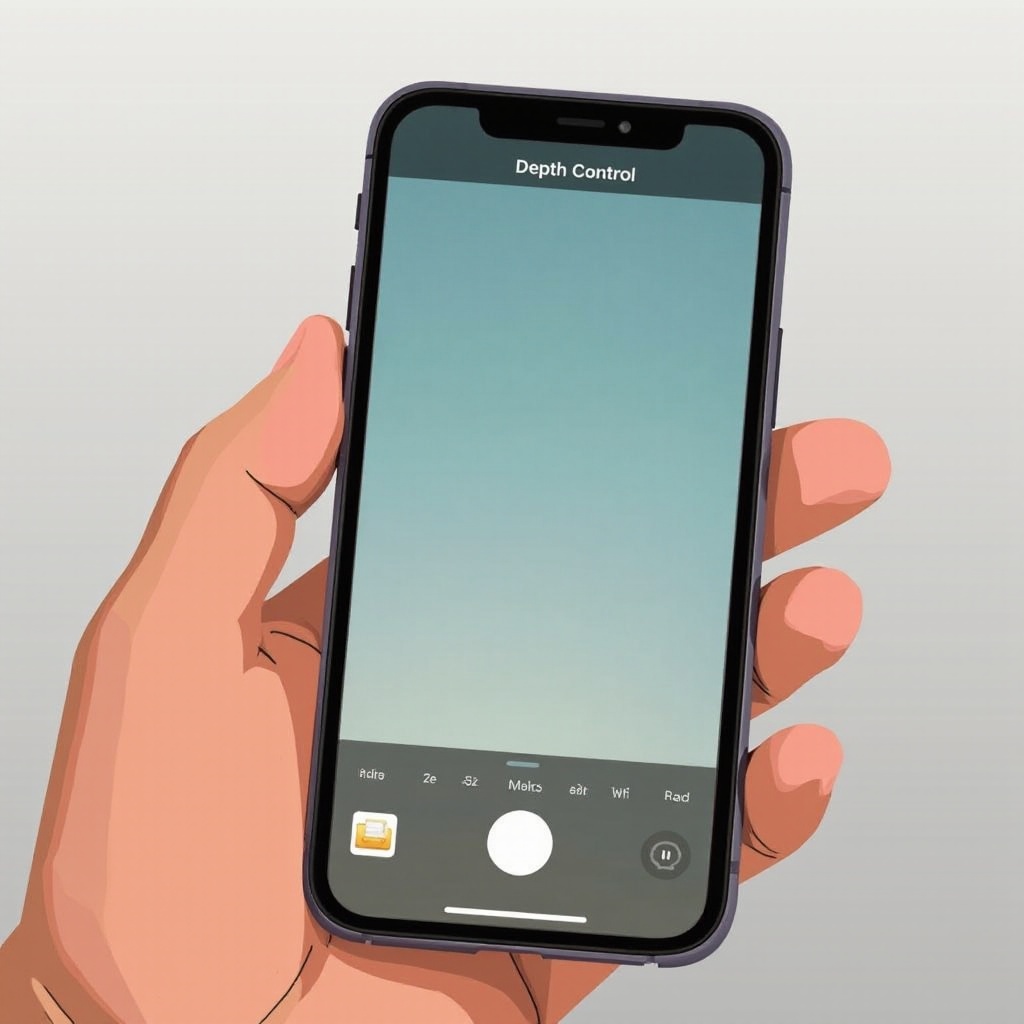
Apple has consistently led the way in smartphone photography, and one standout feature for enhancing your images is Depth Control. If you’re wondering where this feature is and how to maximize its potential, you’re in the right place. Depth Control allows iPhone users to add a professional touch to their photos, making them visually appealing by blurring the background and bringing the subject into sharp focus. Let’s delve into how you can locate and master this tool to elevate your photographic skills.
Understanding Depth Control on iPhone
What is Depth Control?
Depth Control enables iPhone photographers to modify the depth of field post-capture, sharpening subjects while beautifully blurring the background. This feature replicates the sophisticated bokeh effect of DSLR cameras, enhancing your iPhone portrait photography.
Importance of Depth Control in Photography
Utilizing Depth Control significantly enhances your photos’ composition, directing the viewer’s focus straight to the subject. This feature transforms ordinary snapshots into compelling images and is especially useful for portrait shots. Mastering Depth Control can elevate your photos to appear more professional, facilitating creative storytelling through visuals.
Locating Depth Control on Your iPhone
Compatible iPhone Models
To access Depth Control, ensure your iPhone supports this feature. Models from iPhone XS and newer, including the iPhone 11, 12, 13, and 14 series, offer Depth Control. If your device is older, consider upgrading to take advantage of this feature.
Accessing Depth Control in the Camera App
Finding Depth Control on your iPhone is simple:
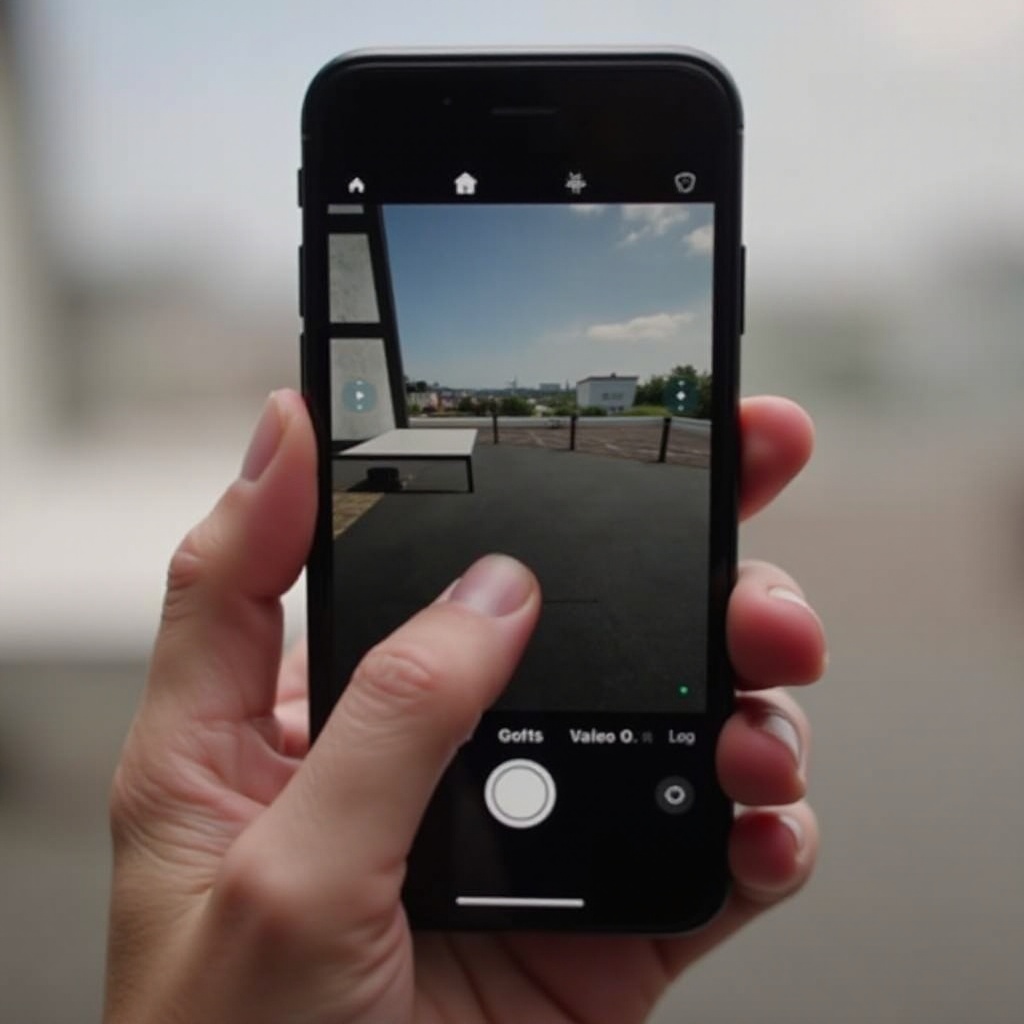
1. Launch the Camera app on your device.
2. Swipe to Portrait mode.
3. Tap the ‘f’ button at the top of the screen.
4. Adjust the depth slider to increase or decrease the blur. A lower f-stop number enhances the blur, drawing more focus to the subject.
With these easy steps, you’ll be ready to capture amazing portrait shots that highlight your subject against a beautifully blurred background.
How to Use Depth Control Effectively
Step-by-Step Guide to Adjusting Depth Control
Harnessing Depth Control ensures striking portraits:
1. Position your subject within the frame.
2. Tap the screen to lock focus on the subject.
3. Use the depth slider to modify the background blur to your preference.
4. Experiment with the settings to see what works best for your scene.
Tips for Achieving the Best Portrait Shots
Enhance your Depth Control usage with these tips:
– Lighting: Natural light often provides the best conditions, so try to shoot outdoors or near windows.
– Distance: Keep a reasonable distance between your camera and the subject, ensuring the entire subject remains in focus.
– Background: Select contrasting backgrounds to highlight your subject more effectively.
Applying these techniques will bring out the full potential of Depth Control in your photography.
Troubleshooting Common Depth Control Issues
Depth Control Not Visible or Accessible
Occasionally, you might experience trouble with Depth Control visibility. Ensure your device supports this functionality, and verify you have the latest iOS installed. Restarting the Camera app or your device can resolve minor glitches, helping restore Depth Control controls.
Solutions for Software Glitches
Should Depth Control issues persist, try the following:
– Restart your device to refresh the system.
– Make sure your iOS is updated to benefit from fixes and enhancements.
– If needed, reset all settings to restore default configurations, sparing your data.
These solutions generally fix software-related hurdles, ensuring seamless use of Depth Control.
Innovations in Depth Control for Creative Photography
Enhancing Creativity with Depth Control
Even non-professionals can unlock creative possibilities with Depth Control. This feature allows photographers to articulate their vision uniquely, adding a touch of professionalism to everyday captures. Whether shooting portraits or artistic stills, Depth Control offers significant creative leverage.
Real-Life Examples of Depth Control Success
Applying Depth Control can enhance numerous photography scenarios:
– Capture engaging portraits by focusing attention squarely on individuals, perfect for documenting special moments.
– Create top-notch product shots for social media or websites.
– Transform travel landscapes by focusing on monuments or landmarks, accentuating them against dynamic backdrops.
By integrating Depth Control, you can redefine your photographic approach, guaranteeing impactful visuals with every click.
Conclusion
Mastering Depth Control on your iPhone opens a new world of creativity, offering professional-quality effects straight from your pocket. By understanding where to find it and how to wield it, you can easily elevate your mobile photography. Experiment with blur settings, develop your unique style, and enjoy the enhanced photographic prowess this tool provides.
Frequently Asked Questions
Can all iPhones use Depth Control?
No, only iPhone models from the XS and later have this feature.
How does Depth Control differ from other iPhone photography features?
Depth Control allows you to adjust background blur, unlike others that mainly modify color or lighting.
What should I do if Depth Control isn’t working properly?
Ensure your device supports it, ensure iOS is updated. Restart your phone or contact Apple’s support if issues continue.