
Introduction
The iPhone’s impressive camera capabilities often elevate our photography experiences. However, the unexpected issue of a blinking camera can disrupt this enjoyment. Many users face this blinking problem, which interrupts both photo and video capture. In this guide, we’ll explore the various reasons your iPhone camera might blink and provide practical solutions to resolve it efficiently.
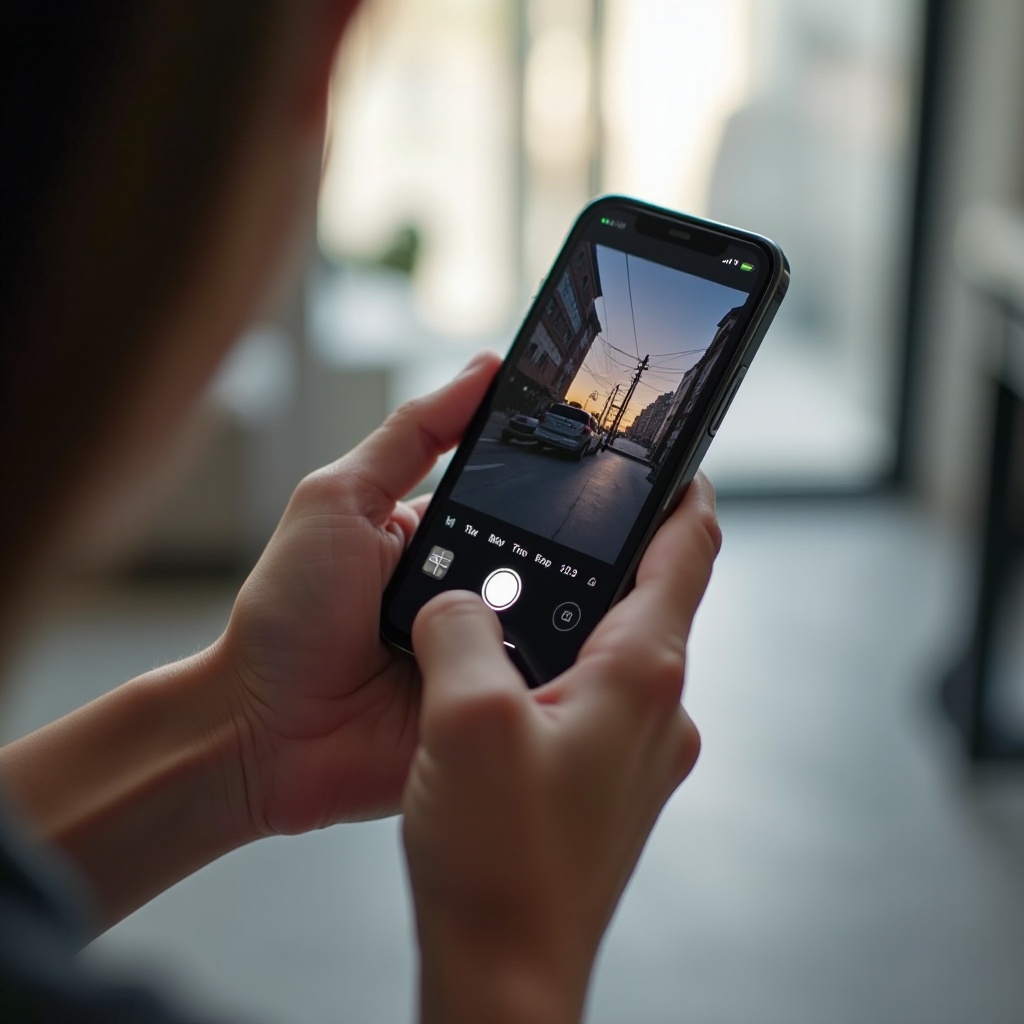
The Prevalence of iPhone Camera Blinking
Blinking issues are not uncommon for iPhone users, affecting various models. Users describe these disturbances as intermittent flickers that disrupt their photography or videography efforts. Common scenarios indicate a connection to recent software updates or configuration changes that need addressing. By reviewing numerous user reports and scenarios, the problem’s pattern becomes clearer, offering insights into potential triggers.
Causes of the iPhone Camera Blinking Phenomenon
To resolve the blinking, we first need to identify its causes, which can typically be classified as hardware or software-related.
- Hardware Causes
- Malfunctions in the camera module can disrupt performance.
- Damage from impacts can affect the camera’s sensors and lens.
-
Internal components or connections may be loose, leading to flickers.
-
Software Causes
- Bugs introduced by iOS updates may interfere with camera functions.
- Third-party apps might cause conflicts, leading to blinking.
- Incorrect settings can trigger unexpected camera behavior.
With these potential causes outlined, we can now proceed to troubleshooting steps to address the issue effectively.
Step-by-Step Troubleshooting Guide
Addressing the blinking issue involves systematic troubleshooting. Follow these steps to restore your camera to optimal performance:
- Restart Your iPhone
-
A simple restart often resolves minor software glitches affecting the camera.
-
Check for Software Updates
-
Navigate to Settings > General > Software Update to ensure you’re on the latest iOS version, which could have solutions for known issues.
-
Adjust Camera Settings
-
Access Settings > Camera and review your settings. Reset them to default if necessary to eliminate configuration errors.
-
Disable Third-party Camera Apps
-
Remove or disable third-party camera apps temporarily to resolve conflicts.
-
Reset All Settings
- If all else fails, go to Settings > General > Reset > Reset All Settings. This won’t delete your data but will restore system settings to defaults.
These steps often resolve software-related problems causing the camera to blink. If the issue persists, it may indicate a deeper hardware issue.
When to Seek Professional Help
Should troubleshooting not resolve the blinking, it might be time to consult professionals. Persistent issues, such as unresponsive focusing or error warnings, are indicators of potential hardware problems.
Taking your iPhone to an authorized service provider can provide a precise diagnosis and professional repair. If under warranty, Apple Support can assist with service options.
Preventive Measures to Avoid Future Camera Issues
Having resolved the issue, it’s crucial to implement measures to prevent recurrence:
- Regular Maintenance Tips
- Keep your iPhone updated with the latest iOS and app versions.
-
Regularly inspect and reset camera settings if needed.
-
Best Practices for Software Updates
- Always read user feedback before installing updates to gauge their impact.
- Back up your device routinely to protect data in the event of software-related issues.
Proactive maintenance helps ensure a long-lasting, trouble-free experience with your iPhone’s camera.
Conclusion
Although frustrating, the iPhone camera blinking issue often has identifiable causes and practical solutions. By understanding these, users can troubleshoot effectively or seek professional help if necessary. Coupled with preventive strategies, you can maintain smooth, uninterrupted use of your camera, capturing life’s moments without concern.
Frequently Asked Questions
Why is my iPhone camera blinking intermittently?
Intermittent blinking can result from software glitches, incorrect settings, or hardware issues. Troubleshooting steps can help identify and resolve it.
Can software updates fix the blinking camera issue?
Yes, updates often address bugs and improve functionality. Ensure your iPhone is running the latest iOS to access these fixes.
What should I do if the blinking persists despite troubleshooting?
If the problem continues, it may be a hardware issue. Consulting Apple Support or visiting a repair center is recommended.