
Introduction
The iPhone compass is an indispensable tool for both urban explorers and nature enthusiasts. Understanding its nuances can elevate your navigation experience, whether you’re tracking a hiking path or finding your way through a bustling city. This comprehensive guide will explore how to effectively set up, use, and optimize the iPhone compass to truly enhance your travel adventures.

Understanding the iPhone Compass
The iPhone compass functions as a modern rendition of traditional navigation tools. Integrating sophisticated technology, it provides users with accurate orientation by employing a combination of magnetometer, gyroscope, and GPS systems.
-
‘What is the iPhone Compass?’ The compass is a feature within the iPhone that uses sensor data to precisely point to true north, assisting users in gaining correct directional bearings.
-
‘Comparing the iPhone Compass to Traditional Compasses:’ While a traditional compass finds magnetic north through a needle, the iPhone compass uses GPS for heightened accuracy.
With a firm grasp on how the iPhone compass operates, we’re ready to delve into setting it up to maximize its potential.
Setting Up the Compass App
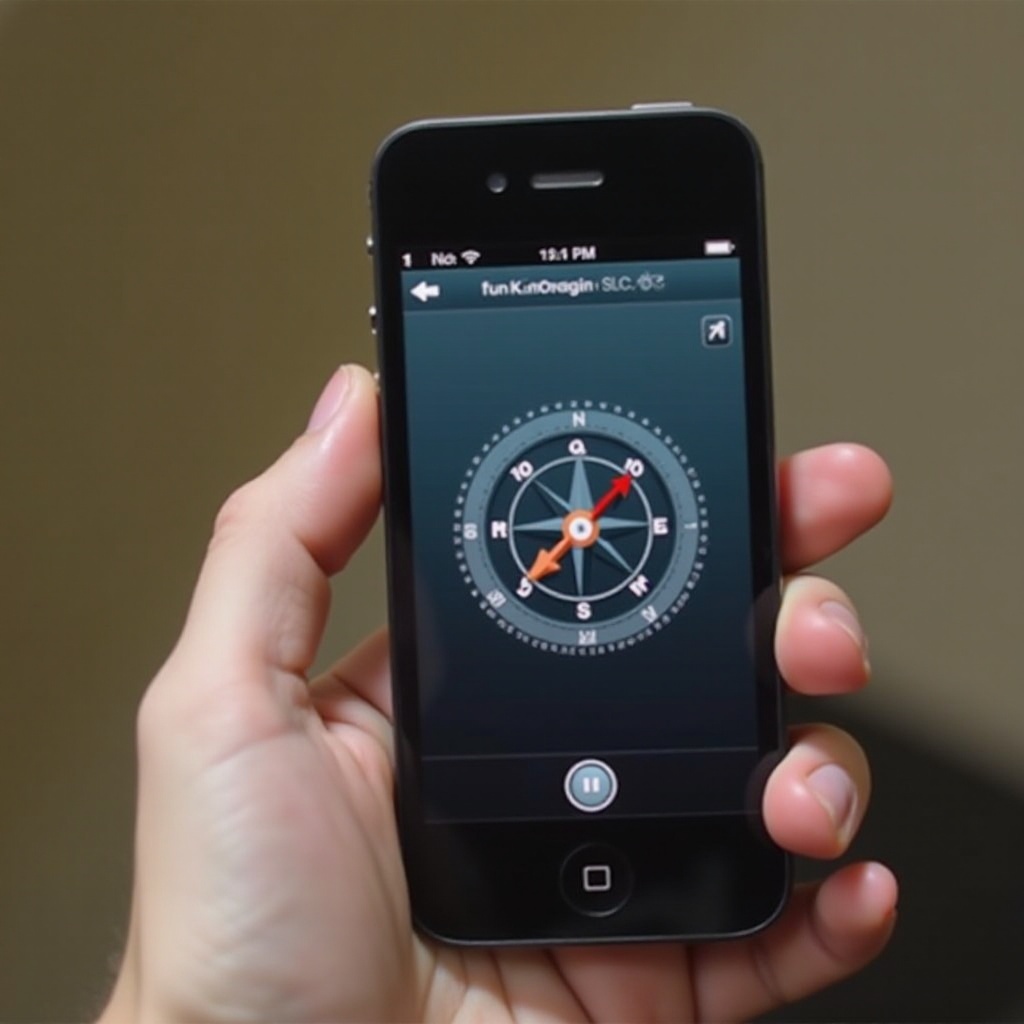
Accessing your iPhone compass starts by opening the Compass app. Simple steps like ensuring initial calibration will prepare you for accurate navigation.
-
‘How to Find and Open the Compass app:’ Locate the app on your home screen or summon it using Siri for hands-free convenience.
-
‘Initial Calibration Steps for New Users:’ Upon first access, calibrate your device by moving it in a figure-eight pattern. This essential step aligns the internal sensors for precise navigation.
Successfully setting up the compass gears you towards interpreting readings effectively during day-to-day travel.
Navigating with the Compass
With the compass app set up, utilizing it for navigation becomes straightforward. As you open the app, it broadcasts your geographical location and directional arrow pointing to true north.
-
‘Interpreting Compass Readings Correctly:’ Being able to discern the displayed coordinates and elevation enhances the usability during travel.
-
‘Practical Applications:
- Hiking: Gain orientation to access remote trails.
-
Urban Navigation: Manage routes efficiently amid congested cityscapes.
-
‘Using the Compass Alongside Apple Maps:’ Teaming up the compass with Maps can provide practical route guidance and navigation support.
These applications make the iPhone compass an invaluable resource, leading into optimizing its use for even greater accuracy.
Optimizing Your Compass Experience
To ensure optimal compass functionality, occasionally addressing minor issues and customizing settings can be beneficial. Troubleshooting common problems allows continuous seamless usage.
-
‘Resolving Common Issues:’ Factors like magnetic interference and outdated iOS can affect performance. Regular recalibration and software updates can assure increased accuracy.
-
‘Enhancing Accuracy with GPS and Additional iPhone Features:’ Activate location services to complement compass readings, using additional apps to tailor navigation needs.
Keeping your compass optimized means that it can serve as a reliable tool across diverse situations, concluding our setup and usage guide effectively.
Conclusion
Mastering the iPhone compass is a transformative element in modern navigation, providing detailed orientation and precision. Integrating it with GPS and other applications adds layers to its functionality, making it an indispensable tool in everyday exploration. Use the tips outlined to unlock the compass’s full potential and enrich your travel experiences.
Frequently Asked Questions
How do I calibrate my iPhone compass accurately?
Rotate the device in a figure-eight pattern when prompted to achieve precise calibration.
Can I use the iPhone compass without an internet connection?
Yes, it relies on sensor data and GPS, allowing functionality offline for basic direction.
How do I troubleshoot compass issues if it’s not working properly?
Check for magnetic interference, redo calibration, or update your iOS to ensure smooth operation.