
Introduction
Enjoying the renowned sound quality of Sonos speakers directly from your iPhone is a game-changer for any music lover. Connecting these two devices opens up a world of auditory pleasure with ease. By following this guide, you’ll learn the steps necessary to pair your Sonos speaker with your iPhone, ensuring that you can stream music effortlessly and enhance your listening experience today.
Preparing Your Devices
Before diving into the connection process, it’s crucial to prepare your Sonos speaker and iPhone for seamless integration. Proper preparation is key to avoiding potential issues during setup.
Ensuring Your iPhone is Up-to-Date
Begin by checking for the latest iOS updates on your iPhone. Regular updates from Apple improve device compatibility and introduce new features, which are essential for connecting to devices like Sonos speakers.
Checking Sonos Speaker Firmware
Verify that your Sonos speaker is running the latest firmware. Open the Sonos app and navigate to the settings to check for updates that enhance the speaker’s performance and compatibility with your iPhone.
With both devices updated, you’re ready to connect using the Sonos app, ensuring a smooth transition to direct streaming.
Connecting via Sonos App
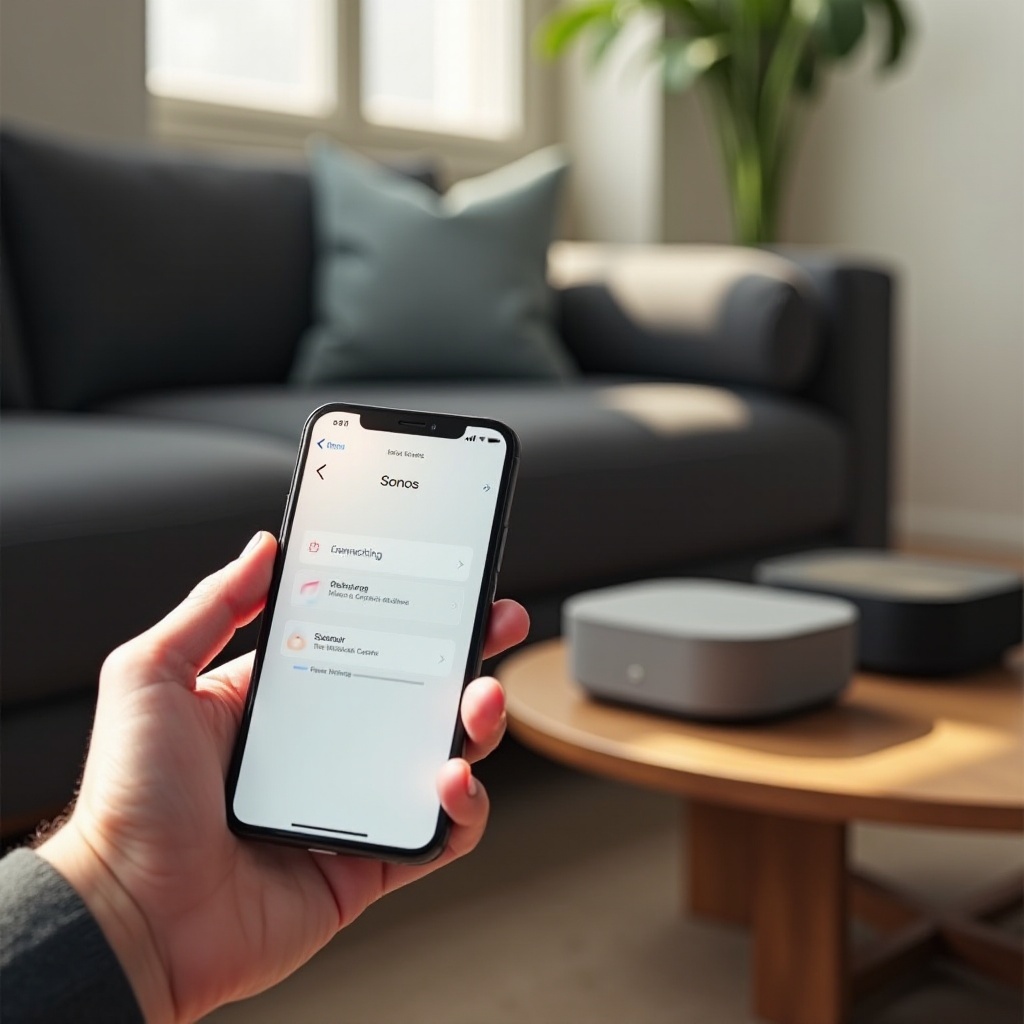
Utilizing the Sonos app makes linking your Sonos speaker and iPhone straightforward. Follow these steps for a successful connection:
-
Download the Sonos App: If it’s not already installed, download the Sonos app from the Apple App Store. Launch the app and either log in or create a new account.
-
Initial Setup and Configuration: Once logged in, follow the app’s instructions to connect your Sonos speaker. Ensure both the iPhone and speaker are on the same Wi-Fi network for easy discovery.
With this setup, your Sonos speaker is ready to deliver exceptional sound suited to your audio preferences. Let’s explore AirPlay as another effective method for connections.
Connecting via AirPlay
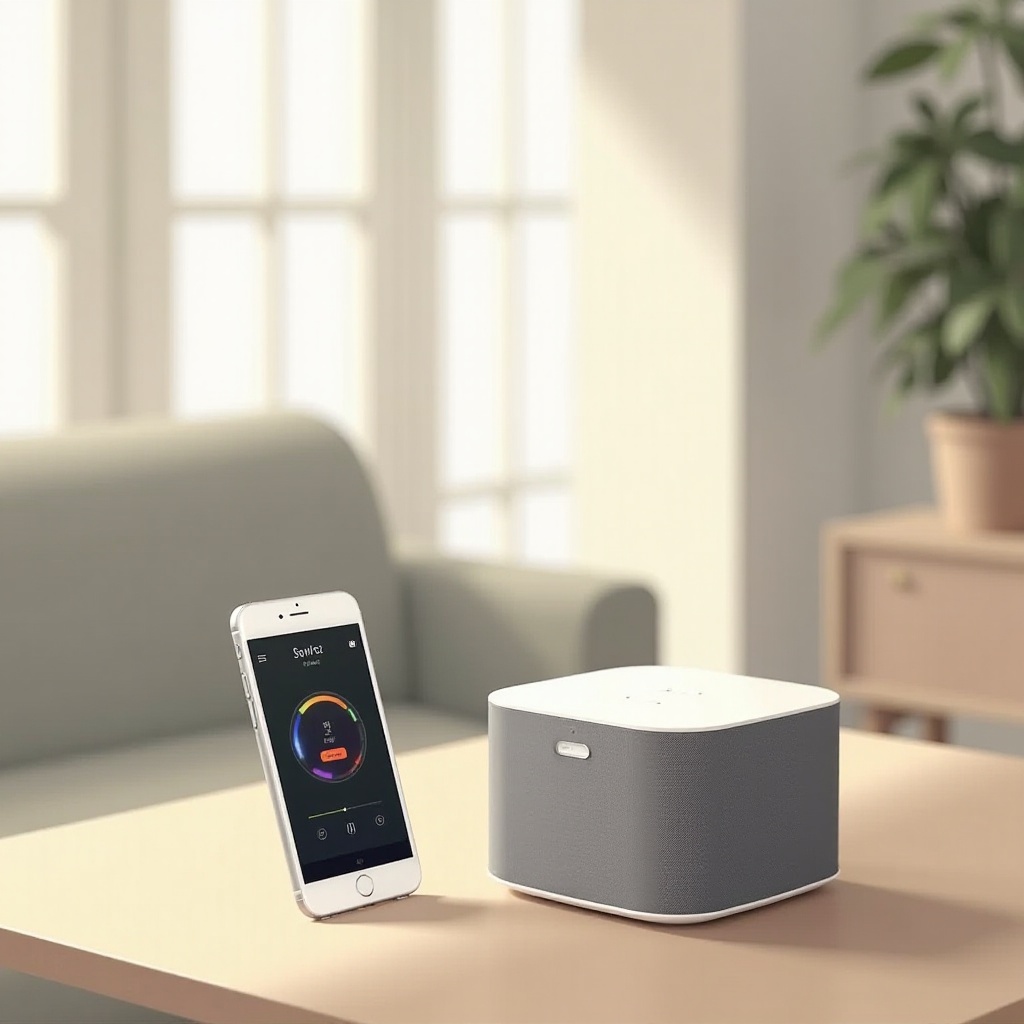
AirPlay offers a flexible and direct method for streaming audio from your iPhone to the Sonos speaker seamlessly:
Enabling AirPlay on Sonos
Ensure that your Sonos speaker supports AirPlay. Most modern models do, but checking the product specifications will help confirm this.
Streaming Music from Your iPhone
Using AirPlay is intuitive. Access the Control Center by swiping down from the top-right corner of your iPhone. Tap ‘AirPlay’ and select your Sonos speaker. Your music will stream, producing high-quality audio for any setting.
AirPlay’s versatility supports various audio apps and services. Should you encounter any problems, our troubleshooting section is here to help.
Troubleshooting Common Issues
Even with a straightforward setup, challenges can arise. Here’s how to address common connectivity issues:
Resolving Connection Problems
If your speaker doesn’t display in the Sonos app or AirPlay list, confirm that both devices share the same Wi-Fi network. Restarting the app or speaker can resolve minor technical glitches.
FAQs about Connectivity
You may wonder: Is there a limit to how many devices can connect to one Sonos speaker, or can multiple iPhones control a speaker simultaneously? Typically, network settings define these limits, but Sonos provides extensive flexibility.
As you resolve connectivity issues, consider optimizing your settings for improved audio performance.
Enhancing Your Audio Experience
Once your devices are connected, ensure the sound quality matches your expectations. Here’s how:
Tips for Optimal Sound Settings
Use the Sonos app to adjust sound settings, fine-tuning bass, treble, and balance, ensuring your music plays perfectly, whether hosting a gathering or relaxing.
Pairing Multiple Speakers
For immersive sound, explore pairing additional Sonos speakers using the app. This creates a surround sound environment, offering deeper and more vibrant audio.
With enhanced settings and speaker pairing, your experience with Sonos is bound to elevate any music collection.
Conclusion
Connecting your Sonos speaker to your iPhone provides more than convenience. It unlocks a superior audio experience, allowing you to enjoy your favorite music effortlessly. By following the simple steps outlined, you can use the Sonos app and AirPlay to bring sound clarity to your listening sessions. Dive into your playlists with Sonos and iPhone, and relish the exceptional quality of sound offered.
Frequently Asked Questions
How do I update my Sonos speaker?
Open your Sonos app, navigate to settings, and check for firmware updates to ensure your speaker operates with the latest features.
Can I connect multiple Sonos speakers to my iPhone?
Yes, using the Sonos app, you can manage and pair multiple speakers, creating a complete home audio system.
Does connecting via AirPlay affect audio quality?
AirPlay uses Wi-Fi to deliver high-quality sound, ensuring your audio streams are clear and uninterrupted.