
Introduction
An iPhone’s auto lock feature is essential for ensuring security and battery efficiency. This feature automatically locks your device after a specific period of inactivity, which prevents unauthorized access and helps conserve battery life. Understanding how to adjust auto lock settings can improve your user experience by tailoring the functionality to fit different scenarios or personal preferences effortlessly.
Whether you need to extend the lock duration for tasks or shorten it for tighter security, these customizable options make it easy. Let’s delve into the details of managing auto lock on your iPhone.
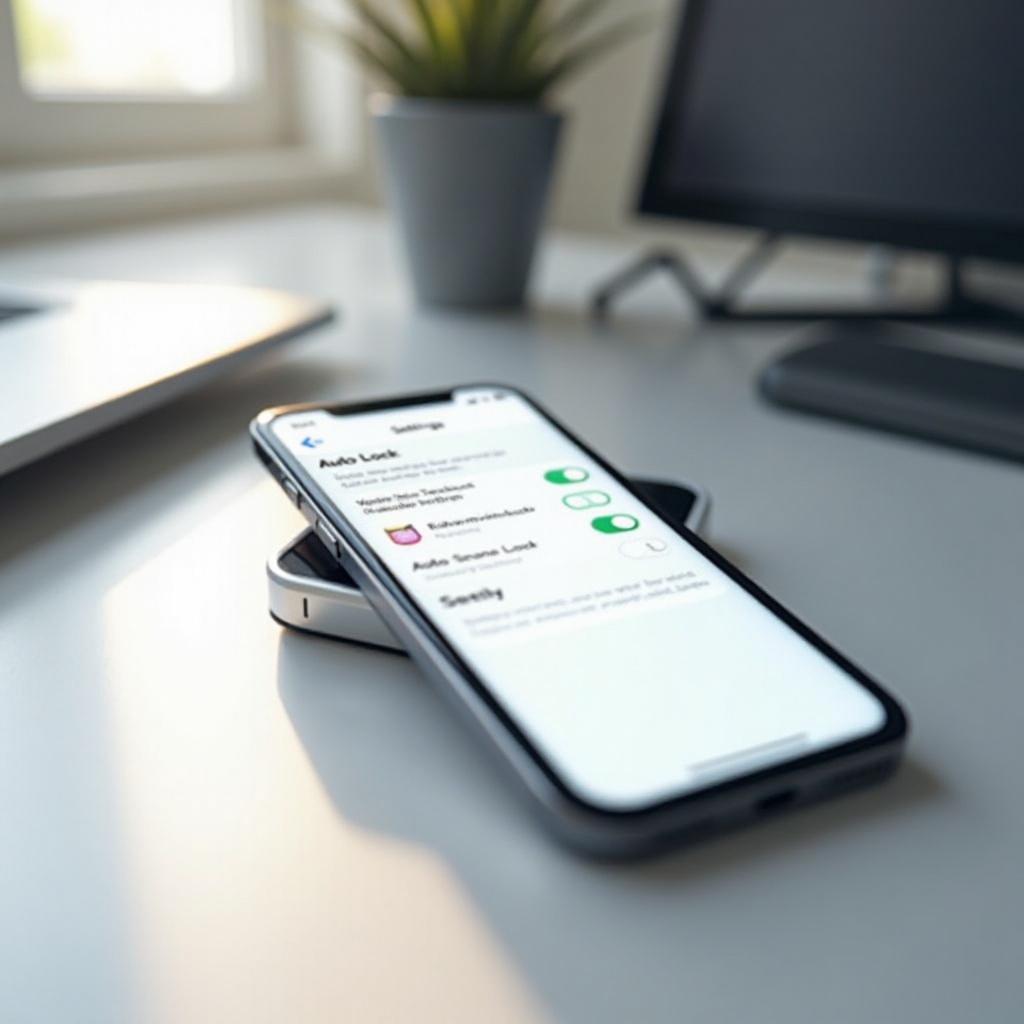
Understanding Auto Lock on iPhone
Auto lock initiates sleep mode for your phone after inactivity, securing your screen and preventing unintended app activity. By default, iPhones set auto lock to a general time frame, but adjusting it for personal habits optimizes both security and ease.
Understanding how auto lock works and its associated benefits guides us into exploring how to access and customize these settings on your device.

Accessing Auto Lock Settings
Adjusting auto lock settings on your iPhone is straightforward within the settings menu. Here’s how to find this feature:
- Unlock your iPhone and open the ‘Settings’ app.
- Scroll down and choose ‘Display & Brightness.
- Tap ‘Auto Lock’ within the Display & Brightness menu.
After locating this menu, you’re prepared to examine changing the timer duration to match your lifestyle or security needs.
Adjusting Auto Lock Duration
Changing the auto lock timer to suit your phone’s functionality is simple. Follow these steps:
- In the Auto Lock menu, review the time options available (e.g., 30 seconds, 1 minute, etc.).
- Reflect on your usage patterns or security concerns: shorter durations enhance security, while longer ones provide convenience.
- Choose your desired time setting. Changes are automatically applied.
Balancing convenience with the need for protection is crucial when determining your auto lock duration.
Troubleshooting Common Auto Lock Issues
Although adjusting auto lock is simple, users sometimes face challenges. Here are common problems and solutions:
- Auto Lock Not Working:
- Check if your device isn’t set to Low Power Mode, which disables auto lock.
-
Verify settings through the Display & Brightness menu.
-
Resetting Auto Lock Settings:
- If settings don’t apply, restart your device post-adjustment.
- Update software to ensure compatibility.
By addressing these troubleshooting tips, you maintain seamless functionality between setup and optimal iPhone usage.
Advanced Tips for Optimizing Auto Lock
Consider enhancing security and battery efficiency by optimizing auto lock settings. Here are advanced strategies:
- Enhancing Security and Battery Life:
- Frequent travelers might use shorter auto lock times for preventing unauthorized access.
-
Longer durations in safe environments maximize battery usage.
-
Using Shortcuts for Quick Adjustments:
- Create custom shortcuts using Apple’s Shortcuts app for swift adjustments.
- Execute real-time changes via Siri during activities.
These advanced tips provide flexibility and productivity in daily iPhone interactions.

Conclusion
Adjusting auto lock settings on your iPhone balances personalized convenience with heightened security. This guide ensures that you optimize this built-in function in alignment with specific requirements.
By understanding the significance of these adjustments, you build a solid foundation for using your device securely and efficiently, making informed changes with confidence.
Frequently Asked Questions
How does auto lock affect battery life?
Auto lock improves battery efficiency by minimizing screen active time, thus conserving power when not in use.
Can I disable auto lock completely?
Yes, selecting ‘Never’ in settings prevents automatic screen locking, although prolonged use isn’t recommended due to security risks.
Why does my auto lock timer reset by itself?
Settings may reset due to updates or system errors; restarting your device or checking for updates can resolve this.